


3 Ways to Take AI Notes for Confidential Meetings
Meetings about customers or internal strategy can be difficult to upload to an external AI service. That does not mean you have to type every word yourself. Here are three ways to keep a meeting record.
1. Use built-in dictation
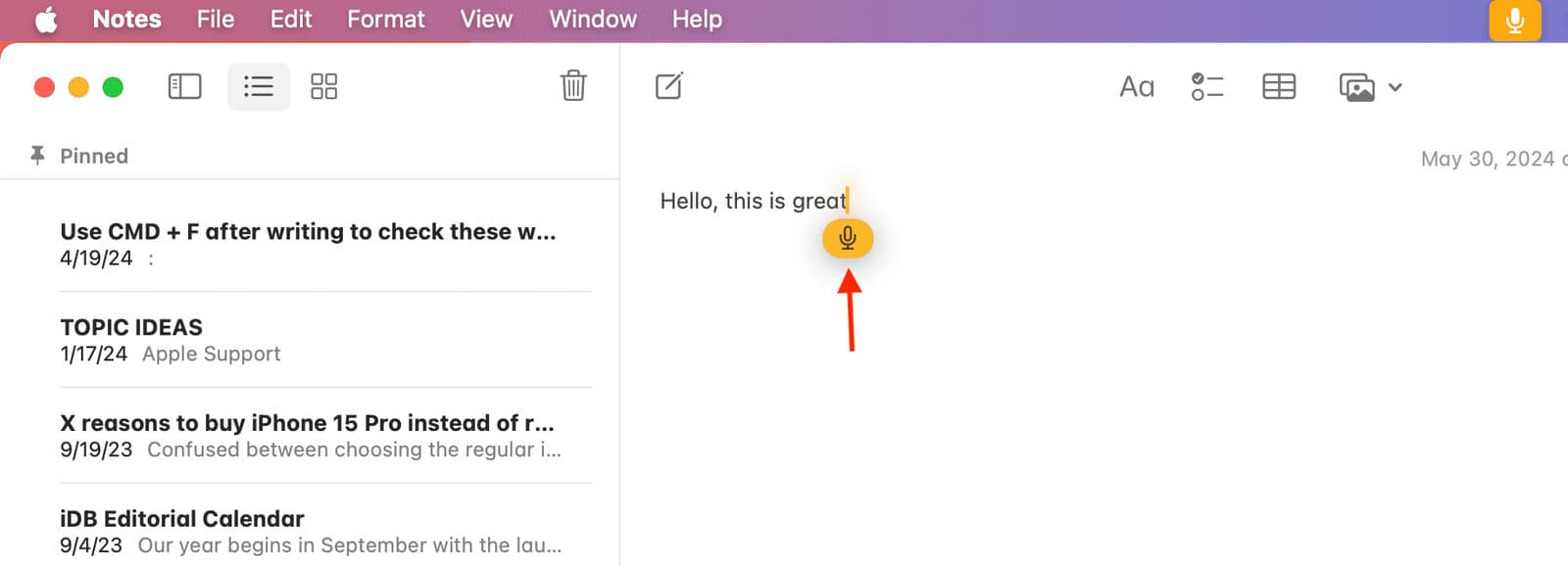
Your computer or phone can turn speech into text using built-in dictation. Where on-device processing is supported, audio can stay off external transcription servers. Check the processing mode for your device and language first.
Accuracy can be disappointing in a real meeting room. Background noise, echo, and voices far from the microphone can reduce recognition quality. Dictation is convenient for short personal notes, but a full meeting can leave you correcting sentences and sorting out who spoke.
2. Build an on-premises system
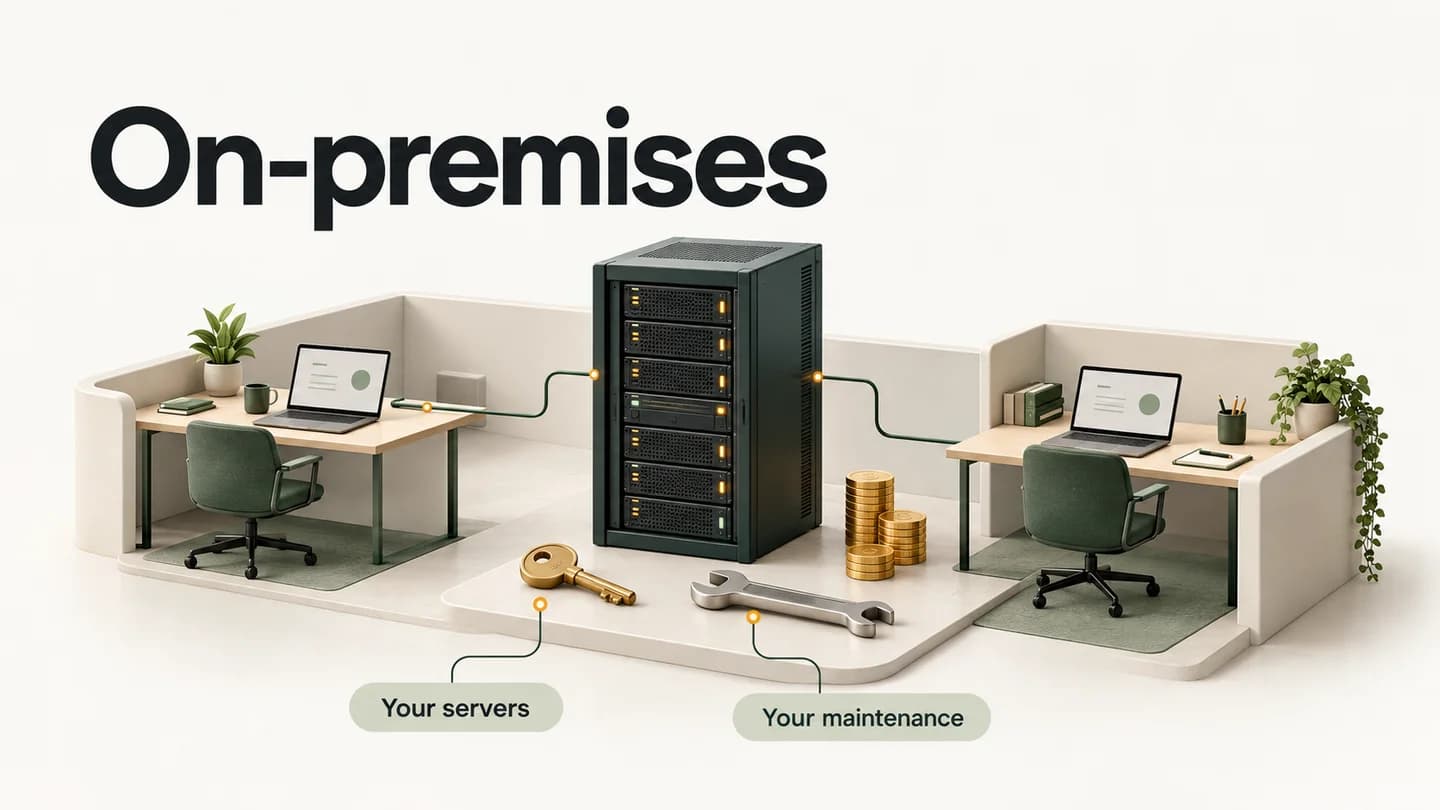
An internal speech recognition server lets your company control where meeting data is processed, who can access it, and how long it is kept.
The drawbacks are complexity and cost. You need to connect audio uploads, speaker separation, transcript editing, and user management, then maintain the server, updates, and incident response.
Deploying an existing AI meeting app as an on-premises enterprise solution can also become very expensive once implementation, licensing, infrastructure, and support are included. That is a substantial commitment for a team that simply needs meeting notes.
3. Run an AI model on your own computer
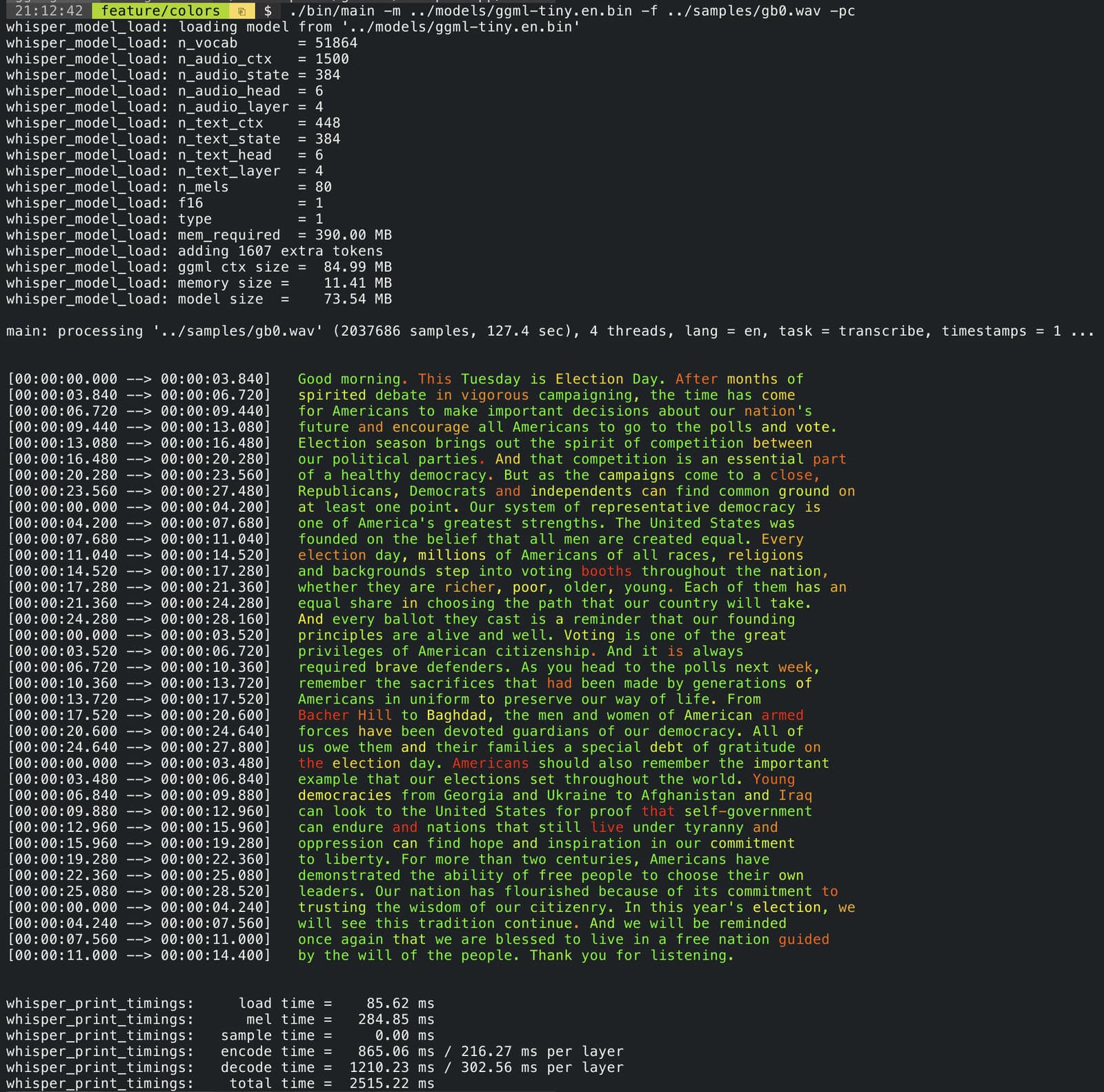
On-device AI turns audio into text on your own computer, without a separate server or an upload to an external transcription service.
One option is OpenAI’s Whisper large-v3-turbo. It supports 99 languages and substantially speeds up transcription while minimizing the accuracy loss compared with the larger model. OpenAI lists roughly 8× relative speed versus its large model in an English benchmark on an A100 GPU. Actual speed and accuracy vary by device and language.
Downloading the model is only the start. You need a runtime, CPU or GPU acceleration, and memory settings. To separate speakers, you also need another model and a way to align its output with the transcript.
Prefer to skip the setup? Try Alt
If you would rather skip that setup, I recommend trying Alt. It uses this model and brings recording and transcription into one workflow.
Depending on the device, Alt uses CPUs, GPUs, and AI accelerators such as Apple Neural Engine, alongside model compression, to run speech recognition efficiently on your computer.
Alt Pro integrates both speech recognition and speaker diarization models into an on-device pipeline, so it can distinguish who said what without sending audio to an external server.
This applies to local mode on supported devices. Configure cloud AI, sharing, and sync according to your company’s security policy.